
Key Takeaways
- WPML is a powerful tool for creating multilingual WordPress sites, making it easy to manage multiple languages from a single WordPress installation.
- Installing WPML involves downloading the plugin, activating it, and configuring your preferred languages and language switcher.
- WPML allows seamless translation of posts, pages, categories, tags, and even custom post types.
- Multilingual SEO is crucial, and WPML integrates well with popular SEO plugins to optimize search visibility.
- Regular updates and maintenance are essential for optimal performance of a multilingual website.
Starting Your Multilingual Journey with WPML
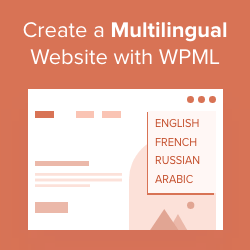
“Multilingual WordPress Site with WPML” from www.wpbeginner.com
Embarking on the journey of creating a multilingual website can seem daunting at first. However, with the right tools and guidance, it becomes a manageable and rewarding task. WPML (WordPress Multilingual Plugin) is one such tool that simplifies the process of building and maintaining a multilingual WordPress site. This guide will walk you through the essential steps to get started with WPML, ensuring you can cater to a global audience with ease.
Imagine reaching potential customers worldwide by speaking their language. WPML makes this possible by allowing you to translate every part of your website, from posts and pages to menus and widgets. But why should you choose WPML over other multilingual plugins?
Why Choose WPML for a Multilingual Site
WPML stands out due to its comprehensive features and ease of use. It’s compatible with most WordPress themes and plugins, ensuring that your site’s multilingual capabilities integrate seamlessly without causing compatibility issues. Additionally, WPML offers robust support and documentation, making it a reliable choice for both beginners and seasoned developers.
Most importantly, WPML’s ability to handle various translation methods—from manual to automatic—gives you flexibility. Whether you prefer translating content yourself or using professional translation services, WPML has you covered.
Getting Started: Installing the WPML Plugin
Installing WPML is the first step towards transforming your WordPress site into a multilingual powerhouse. Here’s a simple guide to get you started:
- Purchase and download the WPML plugin from the official WPML website.
- Log in to your WordPress dashboard and navigate to Plugins > Add New.
- Click on Upload Plugin and choose the WPML zip file you downloaded.
- Install and activate the plugin.
- Follow the setup wizard to configure your language options.
Once installed, WPML will guide you through the initial configuration. You’ll select your site’s primary language and additional languages you wish to support. This step is crucial, as it sets the foundation for your site’s multilingual structure.
Setting Up WPML for Your WordPress Site
With WPML installed, the next step is setting it up to suit your needs. This involves configuring basic language options, setting up a language switcher, and choosing the right URL format for your translated content. For a detailed guide, you can refer to the WPML Getting Started Guide.
Configuring Basic Language Options
WPML allows you to choose from over 40 languages. You can even add your own custom languages if needed. During the setup, you’ll define your site’s default language and additional languages. For a comprehensive guide, check out this Getting Started Guide.
Navigate to WPML > Languages in your WordPress dashboard. Here, you’ll see options to add or remove languages. You can also arrange the order in which they appear, which affects how they are displayed on your site.
Besides that, you can set translation preferences for different content types, ensuring consistency across your site. This means deciding how you want posts, pages, and custom post types to be translated—either manually or automatically. For those looking to enhance their website’s performance, consider exploring proven WP Rocket techniques to boost your WordPress site speed.
Setting Up Language Switcher
The language switcher is a crucial element for user experience on a multilingual site. It allows visitors to easily switch between languages, ensuring they can access content in their preferred language.
To set up a language switcher, go to WPML > Languages and scroll down to the Language switcher options. WPML offers several types of switchers, including a widget, a menu item, or a footer link. Choose the one that best fits your site’s design and navigation.
Language URL Format Selection
Another critical aspect of setting up WPML is selecting the URL format for your translated pages. WPML offers several options:
- Different languages in directories: This adds a language code to your URLs, like example.com/en/.
- A different domain per language: Use separate domains for each language, like example.fr for French.
- Language name added as a parameter: This adds a query string to your URLs, like example.com?lang=en.
Choosing the right URL format depends on your site’s structure and SEO strategy. Most importantly, ensure the format you choose aligns with your branding and is user-friendly.
Adding and Translating Content
“Google Translate and the end of language” from www.michigandaily.com
Once WPML is set up, it’s time to start adding and translating content. This involves creating multilingual posts and pages, translating categories and tags, and ensuring consistency across your site.
Creating Multilingual Posts and Pages
WPML makes it easy to translate your site’s content. To create a multilingual post or page, follow these steps: check out this guide to creating a multilingual website for your business.
- Create a new post or page in your default language.
- Use the + icon next to the language you want to translate into.
- Enter the translated content and save your changes.
Example: If your default language is English and you want to translate a post into Spanish, click the + icon next to the Spanish flag. Enter the Spanish translation and publish the post.
This method ensures each language version of your content is treated as a separate post, allowing you to customize SEO settings and metadata for each translation.
Translating Categories and Tags
Categories and tags are essential for organizing your content. WPML allows you to translate these elements, ensuring your site’s structure remains consistent across languages. To translate categories and tags:
- Go to WPML > Taxonomy Translation.
- Select the taxonomy you want to translate (e.g., categories, tags).
- Enter the translations for each term and save your changes.
By translating categories and tags, you maintain a cohesive site structure, making it easier for users to navigate and find content in their preferred language. For more tips on enhancing your WordPress experience, check out these Elementor page customization tips.
Ensuring Consistency in Content Translation
Consistency is key when managing a multilingual website. It ensures that users have a seamless experience regardless of the language they choose. WPML offers tools to help maintain this consistency, from translation management to content synchronization.
First, it’s important to establish a style guide for translations. This guide should include preferred terminology, tone, and style for each language. By doing so, you ensure that translators understand your brand voice and can maintain it across different languages.
WPML’s Translation Management tool allows you to assign translation tasks to specific users or professional translation services. This feature helps keep track of what content has been translated and what still needs attention. Most importantly, it ensures that translations are completed on time and to a high standard. For additional insights on optimizing your site, consider exploring WooCommerce store SEO optimization best practices.
Managing SEO for Multilingual Sites
SEO is crucial for driving traffic to your site, and it’s no different for multilingual sites. With WPML, you can optimize your multilingual content for search engines, ensuring it ranks well in different languages.
Best Practices for Multilingual SEO
When optimizing your site for multilingual SEO, consider the following best practices: utilize tools like WPML to create a multilingual website that is both user-friendly and search engine optimized.
- Use hreflang tags: These tags help search engines understand which language version of a page to display to users based on their location and language preferences.
- Optimize URL structures: Choose a consistent URL format for your translated content, whether it’s language directories, subdomains, or separate domains.
- Translate metadata: Ensure that title tags, meta descriptions, and alt text for images are translated and optimized for each language.
Besides that, it’s important to monitor your site’s performance in different languages using tools like Google Search Console. This allows you to identify and address any SEO issues that may arise.
Using WPML with SEO Plugins
WPML integrates seamlessly with popular SEO plugins like Yoast SEO and All in One SEO Pack. This integration allows you to manage SEO settings for each language version of your site, ensuring consistent optimization across the board.
For example, when using Yoast SEO with WPML, you’ll find additional options in the plugin’s settings to configure multilingual SEO. These options include setting up hreflang tags and translating SEO titles and descriptions.
By leveraging WPML’s integration with SEO plugins, you can ensure that your multilingual site is optimized for search engines, driving traffic and improving visibility in different language markets. For more insights on enhancing your site’s performance, explore these WooCommerce SEO optimization best practices.
Customizing Themes and Plugins for Multiple Languages
Translating your site’s content is just one part of creating a multilingual website. It’s also important to ensure that your themes and plugins are fully compatible with multiple languages.
Translating Theme Text and Widgets
WPML allows you to translate theme text and widgets, ensuring that every aspect of your site is accessible to users in their preferred language. This includes translating text strings within your theme’s code, such as buttons, headers, and footers.
To translate theme text, use WPML’s String Translation module. This tool lets you search for and translate text strings from your theme and plugins, ensuring that no text is left untranslated.
Widgets are another important element to consider. WPML allows you to create different versions of widgets for each language, ensuring that users see the appropriate content based on their language preference.
Example: If you have a widget displaying a promotional banner in English, you can create a separate widget with the translated banner for Spanish-speaking users. For more customization options, check out these Elementor page customization tips.
By customizing your themes and widgets for multiple languages, you enhance the user experience and ensure consistency across your site.
Managing Plugin Translation
Plugins play a crucial role in extending the functionality of your WordPress site. With WPML, you can manage plugin translations to ensure they work seamlessly with your multilingual setup.
WPML’s String Translation module allows you to translate text strings from plugins, just as you would with themes. This includes translating any user-facing text, such as form labels, error messages, and notifications.
Additionally, some plugins offer built-in multilingual support, making it easier to manage translations. Be sure to check the documentation for each plugin to see if it offers any specific guidance for multilingual sites.
Optimizing Performance for Multilingual Sites
“optimization tips for multilingual websites” from www.oncrawl.com
Performance is a critical factor for any website, and it’s especially important for multilingual sites. Slow loading times can lead to higher bounce rates and a poor user experience, so it’s essential to optimize your site’s performance.
Site Speed Considerations
There are several steps you can take to improve your site’s speed:
- Use a Content Delivery Network (CDN): A CDN helps distribute your site’s content across multiple servers, reducing loading times for users in different locations.
- Optimize images: Compress images to reduce file sizes without sacrificing quality, ensuring faster loading times.
- Leverage caching: Use caching plugins to store static versions of your site’s pages, reducing the load on your server and improving speed.
By implementing these strategies, you can ensure that your multilingual site performs well, providing a smooth experience for users worldwide.
Regular Updates and Maintenance
Keeping your site up to date is essential for maintaining performance and security. Regularly update WordPress, themes, plugins, and WPML to ensure compatibility and access to the latest features.
Additionally, perform routine maintenance tasks, such as checking for broken links, optimizing your database, and monitoring site performance. These tasks help identify and resolve any issues that could impact your site’s performance. For more guidance, you can refer to the Getting Started Guide.
In conclusion, by prioritizing performance optimization and regular maintenance, you can ensure that your multilingual site remains fast, secure, and user-friendly.
Improving Navigation and User Experience
Navigation and user experience are crucial elements of a successful multilingual site. WPML offers tools to help you create a seamless experience for users, regardless of their language preference.
Translating navigation menus is an important step in improving user experience. WPML allows you to create separate menus for each language, ensuring that users can easily find the content they’re looking for. For more insights on enhancing your website, check out these solutions to WordPress plugin conflicts.
Additionally, designing a user-friendly language selector is essential. Place the language switcher in a prominent location, such as the header or footer, to make it easy for users to switch languages.
By focusing on navigation and user experience, you can create a multilingual site that caters to a global audience and meets their needs effectively.
Translating Navigation Menus
Navigation menus are a critical component of any website, guiding users to the content they seek. In a multilingual site, translating these menus is essential to provide a seamless experience for users in different languages. WPML makes this process straightforward by allowing you to create and manage separate menus for each language.
To translate your navigation menus, go to Appearance > Menus in your WordPress dashboard. Here, you’ll see options to create a new menu for each language. Once you’ve set up your menus, use the WPML > Menu Sync feature to ensure all language versions are aligned and up to date.
Designing a User-friendly Language Selector
The language selector is a vital tool for users to switch between languages on your site. Designing a user-friendly language selector ensures that visitors can easily find and use it, enhancing their overall experience.
Consider placing the language selector in a prominent location, such as the header or footer, where users expect to find it. Use clear labels and flags to represent each language, making it easy for users to identify their preferred option. For more tips on enhancing your site’s design, check out these Elementor page customization tips.
Additionally, consider the design and styling of the language selector to match your site’s overall aesthetic. A well-integrated language selector not only improves functionality but also contributes to a cohesive design.
Example: On a travel blog, the language selector might be placed in the top-right corner of the header, with flags representing English, Spanish, and French. This placement ensures visibility and ease of access for users. For more details on creating a multilingual website, refer to this guide on using WPML.
Conclusion
Creating a multilingual site with WPML opens up a world of opportunities, allowing you to reach a global audience and cater to their language preferences. By following this step-by-step guide, you can effectively set up WPML, translate content, optimize for SEO, and enhance user experience. Remember, the key to success lies in regular updates and maintenance, ensuring your site remains fast, secure, and user-friendly.
Taking Your Business Global with WPML
Going multilingual is not just about translating content; it’s about expanding your reach and connecting with audiences worldwide. WPML provides the tools you need to make this transition smoothly, helping you take your business to new heights. By embracing multilingualism, you position your brand as inclusive and accessible, ultimately driving growth and success.
Frequently Asked Questions (FAQ)
Creating a multilingual site raises several questions. Here are some common queries and their answers to help you navigate the process:
Example: “How does WPML compare to other multilingual plugins?”
WPML is renowned for its comprehensive features and ease of use. Unlike some other plugins, WPML supports a wide range of languages, offers seamless integration with themes and plugins, and provides robust support and documentation. These features make it a top choice for many WordPress users.
Can I use WPML on any WordPress theme?
Yes, WPML is compatible with most WordPress themes. However, it’s always a good idea to check your theme’s documentation or contact the theme developer to ensure full compatibility. WPML also provides a list of recommended themes that work well with the plugin.
Using a compatible theme ensures that your multilingual site functions smoothly and looks great across all languages.
How are updates handled with WPML?
WPML regularly releases updates to improve functionality, fix bugs, and ensure compatibility with the latest version of WordPress. These updates are crucial for maintaining the performance and security of your multilingual site.
To keep your site up to date, enable automatic updates for WPML and its add-ons. This ensures you always have the latest features and improvements at your disposal. For additional security measures, consider using Wordfence to safeguard your site.
Is it possible to automate translations with WPML?
Yes, WPML offers an automatic translation feature that uses machine translation services to quickly translate your content. This option is ideal for sites with a large amount of content or for those looking to save time. For additional tips on optimizing your site, check out our WooCommerce store SEO optimization best practices.
However, it’s important to review and edit machine translations to ensure accuracy and maintain your brand’s tone and style.
How do I handle custom post types in WPML?
WPML fully supports custom post types, allowing you to translate them just like regular posts and pages. To manage custom post type translations, go to WPML > Settings and enable translation for your custom post types.
Example: If you have a custom post type for “Events,” you can translate each event entry individually, ensuring all details are available in multiple languages.
By handling custom post types effectively, you ensure that every aspect of your site is accessible to a global audience.
In conclusion, WPML provides a comprehensive solution for creating and managing a multilingual WordPress site. By following the steps outlined in this guide, you can successfully reach a wider audience and enhance your site’s user experience, ultimately driving growth and success for your business. For more detailed instructions, you can refer to the WPML Getting Started Guide.


Leave a Reply