
Quick Insights
Are you tired of waiting for your website to load? A slow site can frustrate visitors and drive them away. WP Rocket is here to change that. It’s a powerful tool designed to speed up your WordPress website, ensuring a seamless experience for your users.
- WP Rocket can significantly reduce your site’s load time by applying 80% of web performance best practices upon activation.
- Installing and configuring WP Rocket is straightforward, even for beginners.
- Advanced features like lazy loading and file optimization are available to further enhance your site’s performance.
- Regular testing and optimization are crucial for maintaining optimal site speed.
- WP Rocket is compatible with most themes and plugins, making it a versatile choice for any WordPress site.
Maximizing WP Rocket’s Potential
“WP Rocket by WP Media WordPress plugin” from developerszone.net
Most importantly, to truly harness the power of WP Rocket, understanding its features is key. WP Rocket isn’t just another plugin; it’s a comprehensive solution to your site’s performance issues. Let’s dive into why it’s essential and how you can make the most of it.
Why Your Site Needs WP Rocket
In today’s fast-paced digital world, users expect websites to load almost instantly. A delay of even a second can lead to a significant drop in engagement. Therefore, optimizing your site’s speed is not just a luxury—it’s a necessity. WP Rocket helps by reducing load times, which can improve your site’s SEO rankings and increase user satisfaction.
Immediate Benefits of Using WP Rocket
Once you activate WP Rocket, you’ll notice an immediate improvement in your site’s speed. It automatically applies essential speed-boosting features such as caching, GZIP compression, and database optimization. This means less waiting time for your visitors and more time for them to engage with your content.
Key Features That Enhance Speed
WP Rocket is packed with features designed to enhance your site’s performance. Some of the standout features include:
- Page Caching: Reduces server load and improves page load times.
- Cache Preloading: Ensures your pages are cached before visitors arrive, leading to faster initial load times.
- GZIP Compression: Compresses web pages to reduce their size and improve load speed.
- Browser Caching: Stores frequently accessed resources on your visitors’ browsers, reducing load times on subsequent visits.
Installation and Setup
Setting up WP Rocket is simple and quick, even if you’re new to WordPress. Follow these steps to get started and unlock your site’s potential.
Installing WP Rocket on WordPress
First, you need to purchase and download WP Rocket from their official website. For more detailed instructions, you can check out these proven WP Rocket techniques to boost your WordPress site speed. After that, follow these steps:
- Log in to your WordPress dashboard.
- Navigate to Plugins > Add New.
- Click on Upload Plugin and choose the WP Rocket zip file.
- Install and activate the plugin.
Once activated, WP Rocket will immediately start working its magic.
Essential Initial Configurations
After installation, it’s crucial to configure WP Rocket to suit your site’s specific needs. Start by accessing the WP Rocket settings from your WordPress dashboard. Here, you can adjust settings like:
- Cache Lifespan: Set how long cached files are stored before being refreshed.
- Mobile Caching: Enable caching for mobile devices to improve load times for mobile users.
- User Cache: Cache pages for logged-in users if your site has user-specific content.
Activating Core Features
WP Rocket comes with several core features that should be activated to maximize your site’s performance. These include:
- Minification: Reduces the size of HTML, CSS, and JavaScript files.
- Combine Files: Merges multiple CSS and JS files into one to reduce HTTP requests.
- Defer JS Loading: Loads JavaScript files after the page content to improve load times.
By enabling these features, you’re setting the foundation for a faster, more efficient website. Next, we’ll explore some advanced features that can take your site speed to the next level. For those using e-commerce platforms, consider checking out our guide on WooCommerce store SEO optimization to further enhance your website’s performance.
Using File Optimization
File optimization is a crucial step in speeding up your website. WP Rocket simplifies this process by providing options to minify and combine your site’s CSS and JavaScript files. By reducing file sizes and the number of requests, your site will load faster.
To enable file optimization, navigate to the WP Rocket settings and select the File Optimization tab. Here, you can choose to minify CSS and JavaScript files, as well as combine them. Remember, while these options can significantly boost speed, they may cause issues with some themes or plugins. For more tips on improving your site’s performance, check out our guide on how to speed up your WordPress website. Always test your site after making changes to ensure everything functions correctly.
Caching for Maximum Performance
“Caching is the process of storing copies of files in a cache, or a temporary storage location, so they can be accessed more quickly.”
WP Rocket’s caching capabilities are at the heart of its performance improvements. By caching pages, your site can serve static HTML versions to users, drastically reducing load times. To ensure maximum performance, make sure the following caching features are activated:
- Page Caching: Generates static HTML files for your dynamic WordPress content.
- Browser Caching: Instructs browsers to store frequently accessed resources locally.
- Object Caching: Caches database queries to reduce load on your server.
Once these settings are in place, your site will be well on its way to delivering lightning-fast performance. However, it’s important to monitor and test your site’s speed regularly to catch any issues early.
Troubleshooting Common Issues
“My site is broken – WP Rocket Knowledge …” from docs.wp-rocket.me
Even with a robust tool like WP Rocket, you might encounter some hiccups. Troubleshooting these issues is essential to maintain your site’s speed and functionality. Let’s explore some common problems and how to resolve them.
Identifying and Resolving Conflicts
Conflicts between plugins or themes can sometimes cause unexpected behavior on your site. If you notice issues after activating WP Rocket, try disabling other plugins one by one to identify the source of the conflict. Additionally, check the WP Rocket support documentation for known compatibility issues.
Fixing Layout Shifts
Layout shifts occur when elements on your page move unexpectedly during loading. This can happen when resources like fonts or images are loaded asynchronously. To fix this, use WP Rocket’s options to defer JavaScript loading and enable lazy loading for images. This will ensure that critical content loads first, reducing layout shifts.
Another tip is to define image dimensions in your HTML or CSS. This helps browsers allocate space for images before they load, preventing shifts as the page renders.
Addressing Cache Issues
Cache issues can lead to outdated content being displayed to users. To resolve this, regularly clear your site’s cache through the WP Rocket dashboard. You can also set up automatic cache clearing based on a schedule or when content updates. For more advanced techniques, explore these proven WP Rocket techniques to boost your WordPress site speed.
If specific pages aren’t updating as expected, use the Cache Exclusion feature to exclude them from caching. This ensures they always display the most recent content.
Performance Testing and Optimization
After setting up WP Rocket, it’s crucial to test your site’s performance to ensure all changes have the desired effect. Regular testing helps you identify areas for further optimization and maintain a fast-loading website.
Measuring Speed Improvements
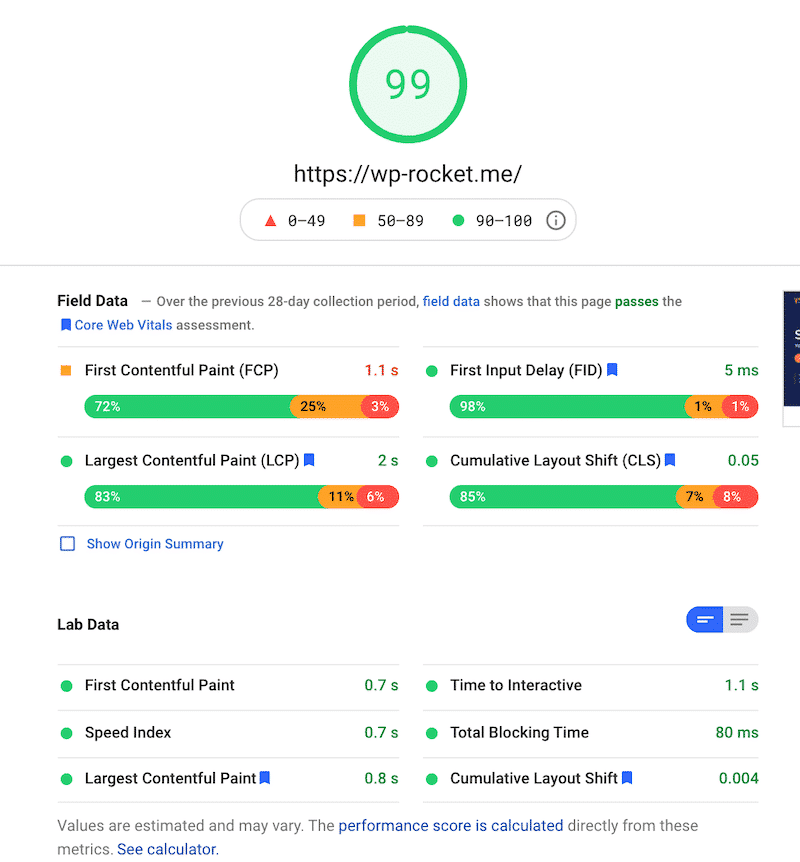
Use tools like Google PageSpeed Insights or GTmetrix to measure your site’s speed. These tools provide detailed reports on load times and offer suggestions for further improvements. For additional security measures, consider exploring Wordfence security tools to safeguard your site.
“A faster website not only improves user experience but can also boost your SEO rankings.”
After running a test, compare the results with previous reports to see how much your site’s speed has improved. This data is invaluable for ongoing optimization efforts.
In addition to online tools, WP Rocket provides its own performance metrics within the plugin dashboard. Use these insights to make informed decisions about future optimizations.
Using Google PageSpeed Insights
Google PageSpeed Insights is a free tool that analyzes your site’s performance and provides actionable suggestions. To use it, simply enter your site’s URL and run a test. The tool will score your site and highlight areas that need attention.
Regular Optimization Practices
Maintaining a fast website requires regular attention. Make it a habit to review your site’s performance monthly and apply any necessary updates or optimizations. Keep WP Rocket and other plugins updated to ensure compatibility and access to the latest features.
Additionally, consider performing a quarterly audit of your site’s content and plugins. Remove any unnecessary elements that could slow down your site. By staying proactive, you’ll ensure your site remains fast and efficient.
Final Recommendations for Optimal Performance
“How to Speed Up Your WordPress Website …” from wp-rocket.me
Achieving optimal performance with WP Rocket requires ongoing attention and fine-tuning. As your website grows and evolves, so too should your approach to performance optimization. Regular updates and monitoring are crucial to maintaining the speed and reliability of your site.
Continual Monitoring and Updates
Regularly monitoring your website’s performance is essential. Use tools like Google Analytics to track page load times and user engagement. Additionally, keep WP Rocket and other plugins updated to benefit from the latest features and improvements. An up-to-date site is more likely to perform well and less prone to security vulnerabilities.
Combining WP Rocket with Other Tools
While WP Rocket is powerful on its own, combining it with other optimization tools can yield even better results. Consider using a Content Delivery Network (CDN) to distribute your site’s content globally, reducing latency for international users. Image optimization plugins can also complement WP Rocket by further reducing load times. For more proven techniques, check out these WP Rocket techniques to boost your WordPress site speed.
For example, pairing WP Rocket with a plugin like Imagify can help compress images without sacrificing quality. This combination ensures that your site loads quickly and looks great on all devices. For more tips on optimizing your site, check out our guide on WordPress plugin conflicts.
“By using a combination of tools, you can create a comprehensive optimization strategy that covers all aspects of your site’s performance.”
Long-term Benefits of Optimization
Investing time and resources into optimizing your website pays off in the long run. A fast-loading site not only enhances user experience but also improves your search engine rankings. This can lead to increased traffic, higher engagement, and ultimately, better conversion rates.
Moreover, a well-optimized site requires fewer server resources, which can lower hosting costs and reduce the risk of downtime during traffic spikes. These benefits make optimization an essential part of any successful online strategy. For example, following WooCommerce store SEO optimization best practices can significantly enhance your site’s performance.
By continually refining your approach and leveraging tools like WP Rocket, you’ll ensure your website remains competitive and user-friendly.
Frequently Asked Questions
Here are some common questions about WP Rocket and its capabilities. Understanding these can help you make the most of the plugin and address any concerns you might have.
How does WP Rocket improve website speed?
WP Rocket enhances website speed by implementing a range of performance optimizations. These include page caching, which creates static HTML files for faster loading, and file optimization, which reduces the size and number of CSS and JavaScript files. By streamlining these elements, WP Rocket significantly decreases load times.
“With WP Rocket, you can expect an immediate improvement in your site’s speed, leading to better user engagement and SEO rankings.”
Additionally, features like lazy loading ensure that images and videos only load when visible to the user, further enhancing performance.
Can I use WP Rocket with other caching plugins?
It’s generally not recommended to use multiple caching plugins simultaneously, as they can conflict and cause issues. WP Rocket is designed to be a comprehensive solution, so there’s usually no need for additional caching plugins. If you have specific requirements, consult the WP Rocket documentation or support team for guidance.
Is WP Rocket suitable for eCommerce websites?
Yes, WP Rocket is well-suited for eCommerce websites. Its features are designed to handle dynamic content, such as product pages and shopping carts, efficiently. By reducing load times, WP Rocket can enhance the shopping experience and increase conversion rates. Just ensure that you configure settings appropriately to avoid caching sensitive data like cart contents.
Many successful eCommerce sites use WP Rocket to deliver a fast, reliable experience for their customers.
How often should I clear my WP Rocket cache?
Clearing your cache depends on your site’s update frequency. For sites with frequent content changes, consider setting up automatic cache clearing through WP Rocket’s settings. For less dynamic sites, a manual clear once a week or month might suffice. Regular cache management ensures that your visitors always see the latest content.
What if WP Rocket doesn’t improve my page speed?
If you don’t see the expected improvements, review your WP Rocket settings to ensure all relevant features are activated. Additionally, check for conflicts with other plugins or themes. If issues persist, consult WP Rocket’s support team for assistance. They can provide insights and solutions tailored to your specific setup.
Remember, optimization is an ongoing process. By staying proactive and leveraging the right tools, you’ll achieve the performance levels your site deserves.


Leave a Reply