
Key Takeaways
- WP Rocket instantly applies 80% of the most common speed optimization techniques upon activation.
- Proper caching settings can significantly reduce your site’s load times, improving user experience.
- File and media optimization are crucial for maximizing website speed and performance.
- Preloading resources helps in serving content faster to users, enhancing speed.
- Regularly updating WP Rocket settings ensures compatibility and peak performance.
Maximize WP Rocket Speed: Step-by-Step Guide & Tips
“The Impact of Website Speed on User …” from newlightdigital.com
Welcome to the world of website optimization where speed is king. If you’re a blogger looking to enhance your site’s performance, WP Rocket is your ultimate ally. This guide will walk you through the essential steps to maximize your website’s speed using WP Rocket, ensuring your readers have the best experience possible.
Why WP Rocket Is Essential for Your Website
Imagine clicking on a link to a blog post you’re eager to read, only to wait for what feels like an eternity for the page to load. Frustrating, right? That’s exactly what happens to your readers if your site isn’t optimized for speed. WP Rocket is designed to prevent this, making your website faster and more efficient.
WP Rocket is a powerful caching and performance plugin for WordPress. It’s well-known for its ability to enhance website speed by implementing a variety of optimization techniques. The moment you activate WP Rocket, it begins applying about 80% of the most common performance improvements automatically. This means that even without touching a single setting, your site can become noticeably faster.
But why is speed so important? Well, a fast-loading site not only improves user experience but also positively impacts your SEO rankings. Search engines like Google prioritize fast websites, meaning better visibility and potentially more traffic for you.
Improving Your Website’s Load Time and Performance
Improving load time is not just about installing a plugin and forgetting about it. It’s about understanding how different elements of your site interact and how WP Rocket can enhance these interactions. From caching to file optimization, every feature plays a role in creating a seamless experience for your visitors.
Let’s dive into the practical steps you need to take to harness the full power of WP Rocket. We’ll start with the basics of installation and move on to more advanced optimization techniques. Whether you’re a seasoned blogger or a beginner, these steps are tailored to provide you with actionable insights.
Step-by-Step Setup for WP Rocket
Installing WP Rocket
The first step to maximizing your website’s speed is to get WP Rocket up and running. This involves a few straightforward steps that anyone can follow. Let’s get started!
Backing Up Your Website
Before you make any changes, it’s crucial to back up your website. This ensures that you have a safety net in case anything goes wrong during the installation process. Most hosting providers offer easy backup solutions, or you can use a plugin like UpdraftPlus.
Downloading and Installing the Plugin
Once your backup is complete, head over to the WP Rocket website to purchase and download the plugin. After downloading, navigate to your WordPress dashboard, go to ‘Plugins’, and click ‘Add New’. Upload the WP Rocket file and activate it. This is where the magic begins!
Initial Configuration Settings
With WP Rocket activated, you’ll be greeted with a dashboard filled with options. While it might seem overwhelming, remember that the default settings already apply essential optimizations. However, for the best results, it’s worth tweaking some settings.
Optimizing WP Rocket Settings
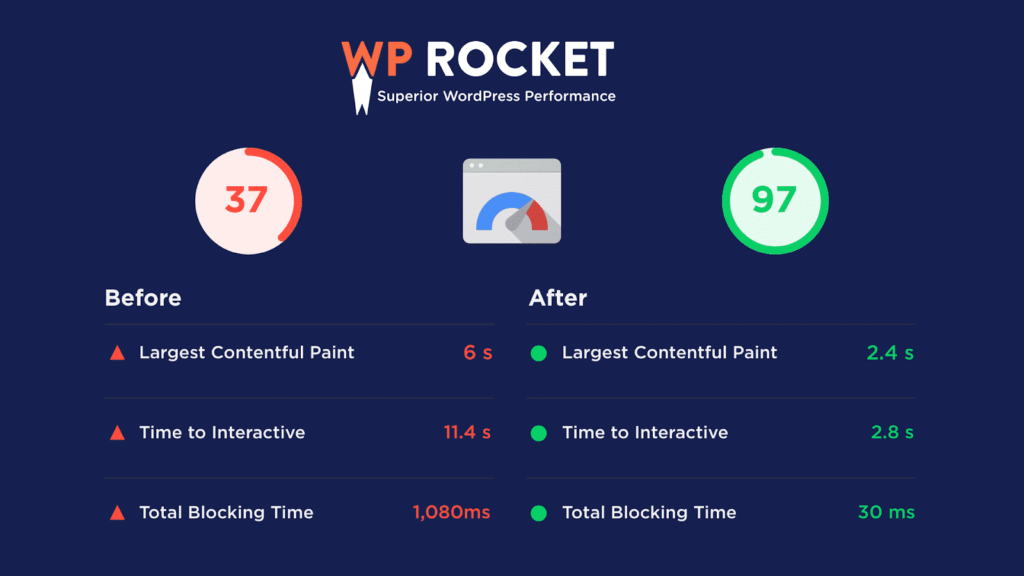
“Score 100% on Google’s Page Speed Test …” from wp-rocket.me
Now that WP Rocket is installed, it’s time to delve into the settings to further enhance your site’s speed. This section will guide you through the critical areas you should focus on for optimal performance.
Cache Basics and Benefits
Caching is the process of storing parts of your website for faster retrieval. Think of it as having a ready-made meal in the fridge rather than cooking from scratch every time. WP Rocket’s caching features are designed to reduce server load and improve load times.
To optimize caching, consider exploring WordPress trends and innovations to stay updated with the latest techniques.
- Enable caching for mobile devices to ensure a smooth experience for mobile users.
- Set a cache lifespan to determine how long cached files are stored before being regenerated.
- Use the ‘Clear Cache’ button whenever you make significant changes to your site to ensure users see the latest version.
File Optimization
File optimization involves reducing the size of your site’s files to speed up load times. WP Rocket provides tools to minify and combine files, which can significantly enhance performance. For more details on how to boost WP Rocket performance, check out this guide.
Here’s what you can do:
- Minify HTML, CSS, and JavaScript files to reduce their size without affecting functionality.
- Combine files to decrease the number of HTTP requests, which can slow down your site.
- Use deferred loading for JavaScript files to ensure they load after the essential content, improving initial load times.
Media Optimization Techniques
Optimizing media files is crucial for speeding up your website. Large images and videos can significantly slow down load times. Therefore, it’s essential to ensure that these files are as small as possible without compromising quality.
Start by compressing images using tools like TinyPNG or ImageOptim. These tools reduce file size while maintaining visual quality. Besides that, consider using lazy loading for images and videos. This technique ensures that media files only load when they appear in the user’s viewport, reducing initial load time. For a comprehensive guide on optimizing website speed, check out this resource on WP Rocket speed optimization.
WP Rocket offers built-in lazy loading, which can be enabled with just a few clicks. Go to the ‘Media’ tab in WP Rocket’s settings and check the box for ‘LazyLoad’. This small change can make a significant difference in how quickly your pages load.
Preloading and Its Advantages
Preloading is a technique where certain resources are loaded before they are needed, allowing for faster access when users navigate your site. WP Rocket makes preloading easy and effective.
To enable preloading, navigate to the ‘Preload’ tab in WP Rocket’s settings. Here, you can activate the ‘Preload Cache’ option. This tells WP Rocket to generate cached files for all your site’s URLs, ensuring that users get a fast-loading experience right from the start. For more detailed instructions, you can refer to this WP Rocket Speed Optimization guide.
Advanced Optimization Techniques
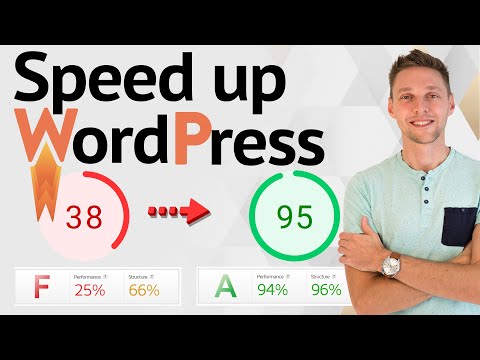
“WP Rocket ⚡Tutorial …” from www.youtube.com
Once you’ve mastered the basics, it’s time to explore advanced optimization techniques that can further enhance your website’s speed and performance. These techniques involve deeper technical adjustments but can yield significant improvements, such as using WordPress 6.x latest features.
Optimizing Database for Speed
Your WordPress database stores all your website’s data, from posts and pages to comments and settings. Over time, this database can become cluttered with unnecessary data, slowing down your site.
WP Rocket offers a simple solution for cleaning up your database. In the ‘Database’ tab, you can schedule automatic cleanups to remove revisions, drafts, and other obsolete data. Regularly cleaning your database helps maintain optimal performance.
For example, one user reported a 20% improvement in load times after using WP Rocket’s database optimization feature. This highlights the tangible benefits of keeping your database tidy.
Besides cleanup, consider optimizing your database tables using tools like phpMyAdmin. This process reorganizes data, making it easier and faster to access.
Setting Up Content Delivery Network (CDN)
A Content Delivery Network (CDN) is a network of servers distributed globally to deliver content to users more quickly. By using a CDN, your website’s content is cached on multiple servers, reducing the distance data must travel to reach users.
WP Rocket integrates seamlessly with CDNs. To set up a CDN, sign up with a provider like Cloudflare or StackPath. Then, in the ‘CDN’ tab of WP Rocket, input your CDN’s URL. This integration ensures that your content is delivered faster to users worldwide.
Minimizing HTTP Requests
Every element on your webpage, from images to scripts, requires an HTTP request to load. The more requests, the longer your page takes to load. Minimizing these requests is key to enhancing speed.
Start by reducing the number of plugins and scripts on your site. Each plugin can add multiple requests, so only keep the essentials. Additionally, use WP Rocket’s file optimization settings to combine CSS and JavaScript files, reducing the total number of requests.
Another effective strategy is to use inline CSS for small stylesheets. This means including CSS directly in your HTML, which can eliminate additional requests for small files.
Troubleshooting Common WP Rocket Issues
Even with the best setup, you might encounter issues with WP Rocket. Fortunately, most problems have straightforward solutions. Let’s address some common issues and how to resolve them.
- Cache not updating
- Site breaking after activation
- Slow backend performance
If your cache isn’t updating, ensure that you’ve set the correct cache lifespan. You can also manually clear the cache from the WP Rocket dashboard. If your site breaks after activating WP Rocket, check for plugin conflicts. Disable all other plugins and reactivate them one by one to identify the culprit.
Slow backend performance can be due to excessive database queries. Use WP Rocket’s database optimization feature to clean up your database and improve speed.
Dealing with Cache Problems
Cache issues are among the most common problems users face. A common symptom is seeing outdated content or changes not reflecting on your site. To fix this, regularly clear your cache through the WP Rocket dashboard.
Additionally, ensure that your cache lifespan is appropriate for your content update frequency. For dynamic sites with frequent updates, a shorter cache lifespan might be necessary.
Fixing Slow Load Times
If your site is still slow after optimizing with WP Rocket, consider checking your hosting provider. Sometimes, the server itself can be the bottleneck. Upgrading to a better hosting plan can provide the resources needed for faster performance. For more troubleshooting tips, check out this WP Rocket troubleshooting guide.
Handling Site Breakage
For instance, a blogger once found their site broken after enabling minification. The solution was to selectively disable minification for specific files causing issues, which WP Rocket allows through its user-friendly interface.
Site breakage often results from conflicts between minified files. WP Rocket allows you to exclude specific files from minification. Identify the problematic files and add them to the exclusion list in the ‘File Optimization’ tab. For more detailed troubleshooting, you can refer to this WP Rocket troubleshooting guide.
In summary, WP Rocket is a powerful tool for boosting your website’s speed and performance. By following these steps and troubleshooting common issues, you can ensure a smooth and fast experience for your readers.
Reducing Unnecessary Plugins and Scripts
One of the simplest yet most effective ways to enhance your website’s speed is by reducing the number of plugins and scripts. Each plugin you install on WordPress adds to the server load, potentially slowing down your site. Therefore, it’s essential to regularly audit your plugins and remove any that are unnecessary.
Start by listing all active plugins and evaluating their necessity. Ask yourself if each plugin is essential for your site’s functionality. If not, deactivate and delete it. Additionally, check for redundant scripts in your theme files or added through custom code. Streamlining these elements can lead to noticeable improvements in load times.
Enhancing Mobile User Experience
With a significant portion of web traffic coming from mobile devices, optimizing for mobile users is crucial. WP Rocket helps by offering mobile caching options, but there are additional steps you can take.
Ensure your website is responsive, meaning it adapts to different screen sizes seamlessly. Test your site on various devices to check for any layout issues. Additionally, use tools like Google’s Mobile-Friendly Test to identify areas for improvement. Fast load times and a smooth user experience on mobile can significantly boost user engagement and retention.
Final Thoughts
Maximizing your website’s speed with WP Rocket is a journey that begins with installation and extends to continuous optimization and monitoring. By implementing the strategies outlined in this guide, you can ensure that your site not only loads quickly but also provides an exceptional user experience.
Remember, website optimization is not a one-time task but an ongoing process. As your site grows and evolves, so should your approach to optimization. Stay informed about the latest updates and techniques to keep your site performing at its best.
Summary of Optimization Strategies
In summary, here’s a quick recap of the strategies to maximize WP Rocket speed:
- Install WP Rocket and configure initial settings for instant improvements.
- Optimize caching, file size, and media for faster load times.
- Implement advanced techniques like database optimization and CDN integration.
- Regularly audit plugins and scripts to reduce server load.
- Enhance mobile user experience for better engagement.
Long-Term Benefits of Using WP Rocket
Using WP Rocket not only speeds up your website but also contributes to long-term benefits such as improved SEO rankings, higher user satisfaction, and increased conversion rates. Fast websites are favored by search engines and users alike, leading to more traffic and engagement.
Frequently Asked Questions
Here are some common questions about WP Rocket and website optimization:
- What is WP Rocket, and why should I use it?
- How do I measure improvements in site speed?
- Can WP Rocket work with other caching plugins?
- How often should I update WP Rocket settings?
- Will WP Rocket affect my site’s SEO?
What is WP Rocket, and why should I use it?
WP Rocket is a comprehensive caching and performance optimization plugin for WordPress. It’s designed to improve your website’s load times by implementing caching, file optimization, and other techniques automatically. Using WP Rocket can enhance user experience and improve SEO rankings.
How do I measure improvements in site speed?
To measure improvements, use tools like Google PageSpeed Insights or GTmetrix. These tools provide detailed reports on your site’s performance and offer recommendations for further optimization. Regularly monitor your site’s speed to track progress and identify areas for improvement.
Can WP Rocket work with other caching plugins?
It’s generally not recommended to use multiple caching plugins simultaneously, as they can conflict with each other. WP Rocket is designed to be a standalone solution that covers most caching needs, so it’s best to deactivate other caching plugins when using WP Rocket.
How often should I update WP Rocket settings?
Review and update your WP Rocket settings whenever you make significant changes to your site, such as adding new plugins or changing themes. Additionally, check for updates to the plugin itself to ensure you’re using the latest features and improvements.
Will WP Rocket affect my site’s SEO?
Yes, in a positive way! Faster load times contribute to better SEO rankings, as search engines prioritize sites that offer a smooth user experience. By using WP Rocket to optimize your site’s speed, you can improve your SEO performance and attract more organic traffic. For additional strategies, check out these Yoast SEO strategies to enhance site visibility.
In conclusion, WP Rocket is a powerful tool that, when used effectively, can transform your website’s performance. By following this guide, you’ll be well on your way to providing a faster, more enjoyable experience for your visitors.


Leave a Reply