
When it comes to managing a website, ensuring your contact forms work flawlessly is crucial. WPForms, a popular WordPress plugin, often serves as a go-to solution for many users. However, like any tool, it can encounter issues. Let’s dive into common WPForms contact form issues and their solutions.
Key Takeaways
- Form submission errors often stem from caching issues or JavaScript conflicts.
- Email notifications may fail due to incorrect SMTP settings or server restrictions.
- License and addon verification errors can occur if your WPForms version is outdated.
- JavaScript conflicts usually arise from incompatible plugins or themes.
- Optimizing notification settings and ensuring proper plugin activation can resolve most issues.
Common WPForms Contact Form Issues
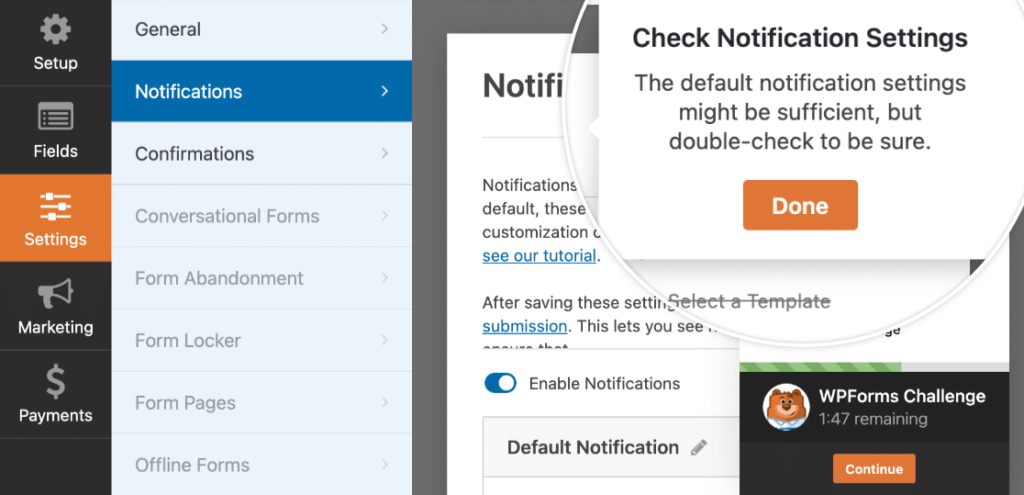
“Simple Contact Form in WordPress …” from wpforms.com
WPForms is designed to be user-friendly, but users can still run into several common issues. Understanding these issues is the first step in troubleshooting and resolving them effectively.
Issues with Form Submissions
Form submission errors are a frequent problem. These errors can manifest as forms not submitting at all, submissions hanging indefinitely, or even forms that appear to submit but don’t send any data.
One major culprit is caching. If your site uses caching plugins, they may store outdated versions of your forms, causing conflicts when users try to submit them. Besides that, JavaScript errors can also interfere with the form submission process.
Example: If a user attempts to submit a form but sees an error message like “The form was unable to submit,” it’s often due to a JavaScript conflict or a caching issue.
Notification Email Failures
Email notifications not being sent or received is another common issue. This can be particularly frustrating because it prevents you from receiving important messages from your users. To ensure your website is secure and functioning properly, consider implementing Sucuri Security measures for enhanced protection.
Such failures are often due to incorrect email configuration settings. If your SMTP settings are not correctly configured, or if your server has restrictions on sending emails, you might face these issues. Additionally, some email services might mistakenly mark your notifications as spam.
Example: “Why aren’t my form submissions reaching my inbox?” This question often points to an issue with SMTP settings or email server configurations.
License and Addon Verification Errors
Errors related to license and addon verification can prevent you from accessing the full features of WPForms. These errors usually occur when the plugin version is outdated or when there’s an issue with the internet connection during verification.
- Ensure your WPForms plugin is updated to the latest version.
- Check your internet connection and firewall settings to ensure they aren’t blocking the verification process.
- Re-enter your license key to see if that resolves the issue.
JavaScript and Plugin Conflicts
JavaScript errors and plugin conflicts can severely impact the functionality of WPForms. These conflicts typically occur when multiple plugins try to use the same resources or when a plugin is not compatible with your theme.
To troubleshoot, start by deactivating all other plugins and switching to a default theme. Then, reactivate them one by one to identify the source of the conflict.
Effective Solutions to WPForms Issues
Now that we’ve identified the common issues, let’s explore some effective solutions. By following these steps, you can ensure your WPForms contact forms run smoothly. For additional insights, you might want to check out solutions for Elementor theme conflicts which could provide useful tips.
Optimizing Form Notification Settings
To ensure your form notifications are delivered correctly, it’s essential to configure your email settings properly. Using a plugin like WP Mail SMTP can significantly improve email deliverability by allowing you to send emails via a reliable SMTP server instead of your web host.
Ensuring Correct License Activation
License verification is crucial for accessing WPForms’ full features. Make sure your plugin is up-to-date, as outdated versions can lead to verification errors. Re-entering your license key might also help resolve the issue.
Besides that, ensure that your server’s firewall settings are not blocking the verification process. If problems persist, contacting WPForms support for assistance is recommended.
Configuring JavaScript Settings
JavaScript settings can be tricky, but configuring them correctly is essential for avoiding conflicts. Start by checking for any errors in your browser’s console. If you spot any, identify the conflicting plugin or theme and address the issue by either updating it or finding an alternative solution.
Troubleshooting Steps for WPForms
“Simple Contact Form in WordPress – Easy Form Builder for …” from wordpress.org
When WPForms isn’t working as expected, it can be frustrating. Fortunately, there are systematic troubleshooting steps you can take to identify and resolve the issues. By following these steps, you can often get your forms back up and running without needing to contact support. Additionally, understanding potential Elementor theme conflicts can also help in resolving issues with WPForms.
Diagnosing Cache Settings
Caching plugins are great for speeding up your website, but they can sometimes cause problems with dynamic content like forms. If your WPForms are not submitting or displaying correctly, your cache settings might be to blame. To diagnose this, try clearing your site’s cache and disabling any caching plugins temporarily to see if the issue resolves.
If disabling the cache resolves the issue, you may need to adjust your caching plugin settings to exclude WPForms scripts and styles from being cached. Consult your caching plugin’s documentation for guidance on how to do this.
Checking Theme or Plugin Conflicts
Conflicts between WPForms and other plugins or themes can cause unexpected behavior. To check for conflicts, deactivate all other plugins and switch to a default WordPress theme, like Twenty Twenty-One. Then, reactivate WPForms and test your forms. For more detailed troubleshooting steps, you can visit the WPForms troubleshooting and support page.
If the forms work correctly with the default theme and no other plugins, reactivate your plugins and theme one at a time. Test the forms after each activation to identify which plugin or theme is causing the conflict. Once identified, you can seek an alternative plugin or contact the developer for support.
Resolving Timeouts and Submission Hangs
Timeouts and submission hangs are often related to server performance issues. If your forms are taking too long to submit or hang indefinitely, consider the following steps:
- Check your server’s error logs for any indications of what might be causing the timeout.
- Contact your hosting provider to ensure your server is configured correctly and has sufficient resources.
- Optimize your website’s performance by compressing images, minifying CSS and JavaScript, and leveraging browser caching.
Improving server performance can often resolve issues with form submissions hanging or timing out. For a comprehensive guide on enhancing site speed, check out this step-by-step guide on maximizing WP Rocket speed.
Enhancing WPForms Performance
To ensure WPForms operates at its best, you can take steps to enhance its performance on your site. This not only helps resolve existing issues but also prevents future ones.
Utilizing WP Mail SMTP for Reliable Email Delivery
Email deliverability is a common problem for many WordPress users. By using WP Mail SMTP, you can send emails via a trusted SMTP server, bypassing potential issues with your web host’s email server. This can significantly improve the reliability of your form notification emails.
To set this up, install and activate the WP Mail SMTP plugin. Then, follow the setup wizard to configure your SMTP settings using your preferred email service provider. This ensures that your emails are sent using a secure and reliable method. For more insights on enhancing your WordPress experience, explore these WordPress trends and innovations.
Optimizing Site Performance for Forms
Site performance directly affects how well your forms function. By optimizing your site, you can ensure that WPForms runs smoothly and efficiently. Here are some tips:
- Use a content delivery network (CDN) to distribute your site content globally, reducing load times.
- Optimize images by compressing them without losing quality.
- Minimize the number of HTTP requests by combining CSS and JavaScript files.
These optimizations not only improve form performance but also enhance the overall user experience on your website. For further tips on enhancing your site, explore our guide to creating a mobile-friendly site using Elementor.
Testing with Temporary Admin Users for Support
If you need to contact WPForms support for assistance, they might request temporary admin access to your site. Creating a temporary admin user allows support to diagnose and resolve issues directly without compromising your site’s security. For more information, you can refer to the WPForms support documentation.
To create a temporary admin user, navigate to your WordPress dashboard, go to “Users,” and click “Add New.” Fill in the required details, set the role to “Administrator,” and choose a strong password. Remember to delete this account once the support process is complete.
Recommendations and Best Practices
“7 WordPress Monthly Maintenance Tasks …” from wpforms.com and used with no modifications.
Maintaining your WPForms setup involves more than just troubleshooting issues as they arise. By following best practices, you can prevent many common problems and ensure your forms function reliably.
Regularly update WPForms and all other plugins to their latest versions. This ensures you have the latest features, improvements, and security patches. Furthermore, periodically review your form settings and configurations to ensure they align with your current needs.
By staying proactive and informed, you can keep your WPForms running smoothly and effectively serve your website visitors.
Regular Updates and Maintenance
Keeping your WPForms and WordPress installation up-to-date is crucial for maintaining a secure and efficient website. Regular updates ensure you have access to the latest features, bug fixes, and security patches. This proactive approach can prevent many common issues before they even occur, similar to how Sucuri Security helps in boosting site protection.
To update WPForms, navigate to your WordPress dashboard, click on “Plugins,” and check for any available updates. It’s also wise to update your themes and other plugins regularly. By doing so, you minimize the risk of conflicts and enhance your site’s overall performance.
Collaborating with WPForms Support
When troubleshooting on your own doesn’t resolve the issue, WPForms support can be a valuable resource. They have the expertise to diagnose and fix problems that might be beyond your reach. When reaching out to support, provide detailed information about the issue, including any error messages, recent changes to your site, and steps to reproduce the problem.
Example: “After updating my theme, my WPForms stopped submitting. I’ve disabled caching and checked my SMTP settings, but the issue persists. Can you help?”
By providing comprehensive details, you enable the support team to offer more accurate and timely assistance. Remember, they are there to help you make the most of your WPForms experience.
Educating Your Team on WPForms Use
Ensuring that your team is knowledgeable about WPForms can significantly reduce the occurrence of user errors and enhance the overall effectiveness of your forms. Training sessions or workshops can familiarize your team with the plugin’s features and best practices for form creation and management.
Consider creating a user guide or documentation tailored to your specific use cases. This resource can serve as a quick reference for team members, helping them troubleshoot minor issues independently and use WPForms more effectively.
Frequently Asked Questions
Addressing common questions can provide quick solutions to frequent WPForms issues. For instance, understanding potential Elementor theme conflicts can also help in resolving WPForms issues. Here are some of the most asked questions and their answers.
Why isn’t my WPForms contact form sending emails?
If your WPForms contact form isn’t sending emails, check your SMTP settings first. Ensure that your SMTP plugin is configured correctly and that your server allows email sending. Also, verify that the recipient email addresses are correct and not blacklisted by your email provider.
How can I quickly resolve WPForms submission errors?
To resolve submission errors, start by clearing your site’s cache and checking for JavaScript conflicts. Deactivate other plugins and switch to a default theme to identify any conflicts. If the issue persists, review your server’s error logs for additional insights. For more details on handling theme conflicts, you can refer to this guide.
What are the best settings for WPForms notifications?
For optimal notification settings, use a reliable SMTP server to send emails. Ensure that the “From” email address matches your domain to avoid spam filters. Customize the notification message to include all necessary form details, and test the settings by sending a test email.
How do I troubleshoot WPForms JavaScript issues?
JavaScript issues can be diagnosed using your browser’s console. Look for any errors or warnings that appear when loading the page with the form. Deactivate other plugins and switch to a default theme to see if the issue resolves. If a specific plugin or theme is causing the conflict, consider updating it or contacting its developer for support.
What steps should I take if my WPForms license isn’t verified?
If your WPForms license isn’t verifying, ensure your plugin is updated to the latest version. Check your internet connection and firewall settings to ensure they aren’t blocking the verification process. Re-enter your license key and, if necessary, contact WPForms support for further assistance.
- Check your SMTP settings if emails aren’t sending.
- Clear cache and check for JavaScript conflicts for submission errors.
- Use a reliable SMTP server for notification emails.
- Diagnose JavaScript issues using the browser console.
- Re-enter the license key if verification fails.
By following these steps and leveraging the available resources, you can effectively troubleshoot and resolve WPForms contact form issues. Remember, proactive maintenance and education are key to minimizing problems and ensuring your forms serve your website’s needs efficiently.
In conclusion, while WPForms is a powerful tool for creating and managing contact forms, occasional issues can arise. By understanding common problems and implementing effective solutions, you can keep your forms running smoothly and enhance your site’s overall functionality.


Leave a Reply